
Download PDF Compress – Free PDF Compression, Reduce Size, Optimize PDFs
Overview
Sending a PDF as an attachment should never feel like a gamble with file‑size limits, especially when you need to share important documents quickly and securely. PDF Compress eliminates that friction by providing an all‑in‑one desktop tool that compresses, reduces, and optimizes PDF files without ever leaving your computer. The application works locally, which means your confidential files never touch the cloud unless you choose to share them manually.
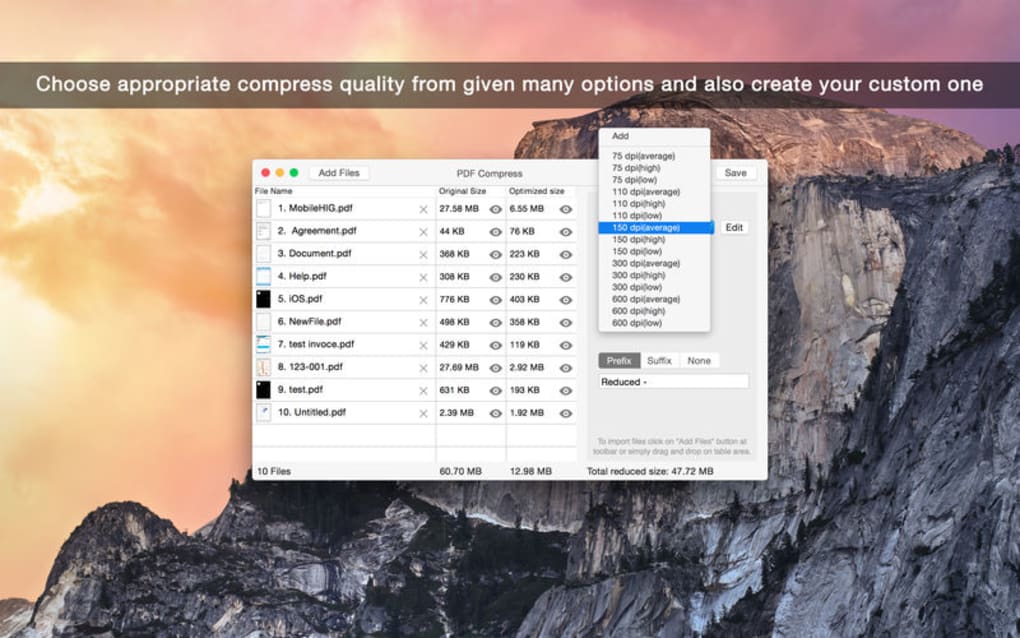
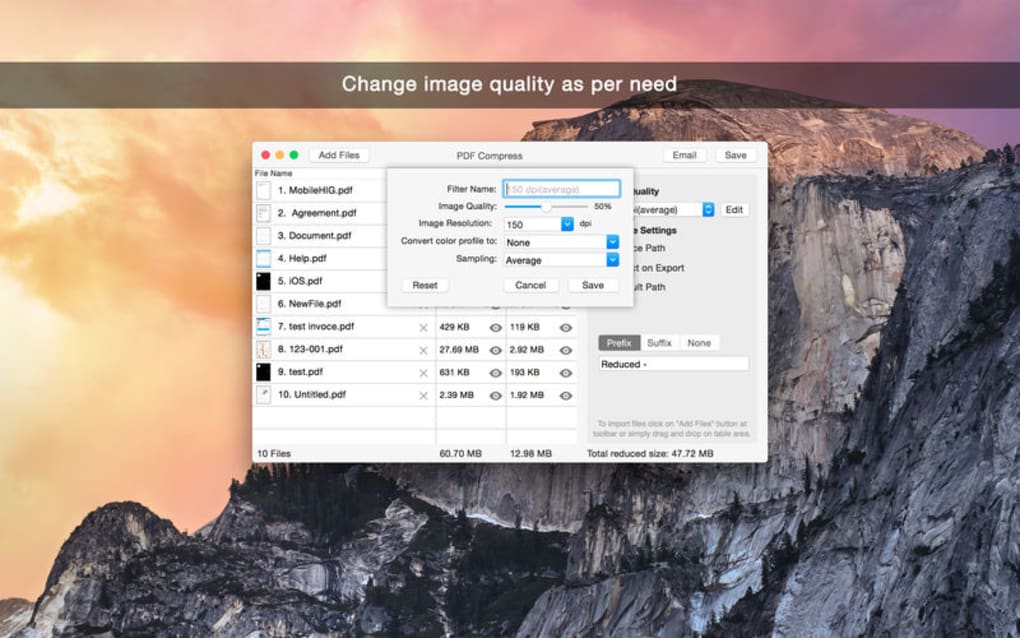
Whether you’re dealing with a single report, a password‑protected contract, or a batch of scanned invoices, PDF Compress offers a straightforward drag‑and‑drop interface that instantly recognises the file type and presents a range of compression options. You can fine‑tune image quality, DPI, and even keep specific elements uncompressed, ensuring the final output meets both visual fidelity and size constraints. A built‑in preview window lets you compare the original and compressed versions side‑by‑side before you hit “Apply,” giving you confidence that the document will still look professional after reduction.
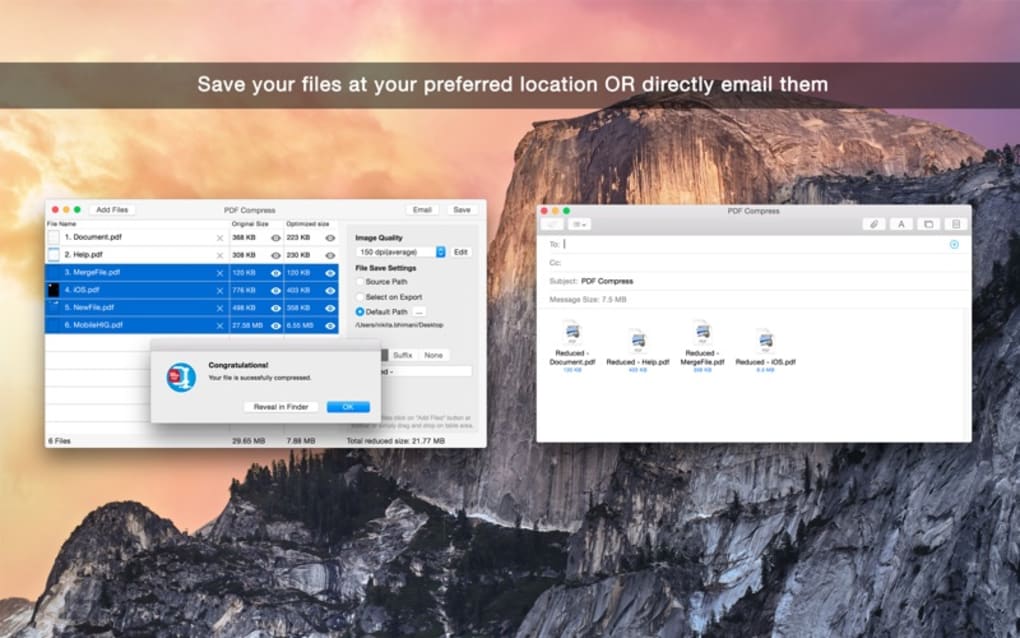
Additionally, the software stores custom compression presets, so you never have to recreate your favourite settings from scratch. This makes PDF Compress a reliable, time‑saving companion for freelancers, office teams, and anyone who regularly emails PDFs. The app is available for both Windows and macOS, supports batch processing, and includes a native “share by email” button that instantly creates a new email draft with the compressed file attached.
In short, PDF Compress turns a potentially frustrating task into a seamless, secure, and efficient workflow.
Key Features & Installation Guide
Feature List
- Customizable compression settings – adjust image quality, DPI, and color depth.
- Support for password‑protected PDFs and encrypted documents.
- Batch compression – drag and drop multiple files for simultaneous processing.
- Live preview – view before‑and‑after results without leaving the app.
- Save and reuse compression presets for consistent results.
- In‑app email sharing – generate an email with the compressed PDF attached in one click.
- Cross‑platform compatibility – native installers for Windows 10/11 and macOS 10.15+.
- Secure local processing – no internet upload required unless you choose to share.
- Lightweight footprint – runs efficiently on low‑end machines.
Installation & First‑Run Instructions
Downloading and installing PDF Compress is designed to be as painless as the compression itself. Follow these steps to get started:
- Download the installer. Visit the official website and click the “Download for Windows” or “Download for macOS” button. The file is a small
.exe(Windows) or.dmg(macOS) package, typically under 30 MB. - Run the installer. On Windows, double‑click the
.exefile and follow the on‑screen prompts. On macOS, open the.dmg, drag the PDF Compress icon to the Applications folder, and launch it from there. - Grant permissions. The first launch may request access to your Documents folder. This is necessary for the app to read and write PDF files. Approve the request; the permission is stored locally and never transmitted.
- Configure your first preset. In the Settings panel, choose your preferred image quality (Low, Medium, High) and DPI. Save this as “Default” so future compressions use it automatically.
- Start compressing. Drag a PDF onto the main window, select the preset, and click “Compress.” Use the preview pane to verify the size reduction and visual quality before confirming.
- Share instantly. After compression, click the “Email” button. PDF Compress will open your default mail client with a new draft, the compressed file attached, and a suggested subject line.
The entire process—from download to first successful compression—typically takes under two minutes on a standard laptop. Because the software runs locally, you benefit from faster processing speeds and enhanced privacy compared to cloud‑based alternatives.
Compatibility, Pros & Cons, and Frequently Asked Questions
System Compatibility
PDF Compress is built on native frameworks for both Windows and macOS, ensuring smooth performance across the most common desktop environments. Minimum system requirements are modest:
- Windows: Windows 10 (64‑bit) or later, 2 GB RAM, 200 MB free disk space.
- macOS: macOS 10.15 Catalina or later, 2 GB RAM, 200 MB free disk space.
The app takes advantage of multi‑core CPUs for parallel compression when handling batches, which means you’ll notice faster results on newer hardware. It also integrates with the native file explorer (File Explorer on Windows, Finder on macOS) for easy drag‑and‑drop operations. If you run older operating systems such as Windows 7 or macOS 10.14, the installer will alert you that the current version is not supported, and you’ll be directed to a legacy build that still offers core compression capabilities.
Pros & Cons
- Pros
- Fully offline – your PDFs never leave your computer unless you choose to share.
- Highly customizable compression settings for precise control.
- Batch processing saves time when dealing with multiple documents.
- Live preview prevents accidental quality loss.
- Native email sharing eliminates the need for third‑party tools.
- Lightweight installer and low system footprint.
- Cons
- No built‑in cloud storage or collaboration features.
- Only available for desktop platforms (no Android or iOS version).
- Advanced OCR‑based compression not included in the free version.
FAQ – Your PDF Compression Questions Answered
Can PDF Compress handle password‑protected files?
Yes. The application prompts you to enter the password before it begins compression, ensuring encrypted PDFs are processed securely.
Is there a limit to the number of files I can compress at once?
There is no hard limit, but the practical limit depends on your system’s RAM and CPU. For optimal performance, batch sizes of 20‑30 files are recommended on average hardware.
Does PDF Compress retain the original file’s metadata?
By default, the software preserves document metadata such as title, author, and creation date. You can disable this in the Settings panel if you need a completely clean file.
Is the software free or does it require a license?
PDF Compress offers a fully functional free tier that includes all core compression features. A paid “Pro” license unlocks advanced OCR, priority updates, and premium support.
How secure is the local compression process?
All processing happens on your device; no data is uploaded to external servers. The app uses AES‑256 encryption for any temporary files it creates, ensuring maximum privacy.
Overall, PDF Compress delivers a reliable, secure, and user‑friendly solution for anyone who needs to shrink PDFs before emailing or uploading. Its offline nature, customizable presets, and batch capabilities make it stand out among free utilities. While a native mobile app would be a welcome addition, the desktop experience is polished enough to meet the needs of most professionals.
Conclusion & Call to Action
If you’ve ever stared at an email attachment warning that your PDF exceeds the size limit, PDF Compress is the tool that turns that frustration into a quick, secure solution. By offering granular control over compression settings, batch processing, and an integrated email share button, the software streamlines the entire workflow from document creation to delivery. Its offline processing guarantees that sensitive information stays on your machine, a crucial feature for legal, financial, and healthcare professionals. Whether you’re on Windows or macOS, the installer is lightweight, the interface is intuitive, and the performance is swift enough to handle even large, image‑heavy PDFs without lag.
Ready to experience hassle‑free PDF sharing? Download PDF Compress now and start compressing your files for free. Upgrade to the Pro license anytime to unlock premium features such as OCR‑based compression and priority support. Take control of your document sizes, protect your privacy, and keep your inbox uncluttered—all with a single click.







